 English
 The free products that I tried would not open the resources I was interested in. Plus, the UI is super easy to use. No muss, no fuss, no Visual Studio to crash my box. Keep up the good work.

Screenshots: Everything Is Right At Your Fingertips

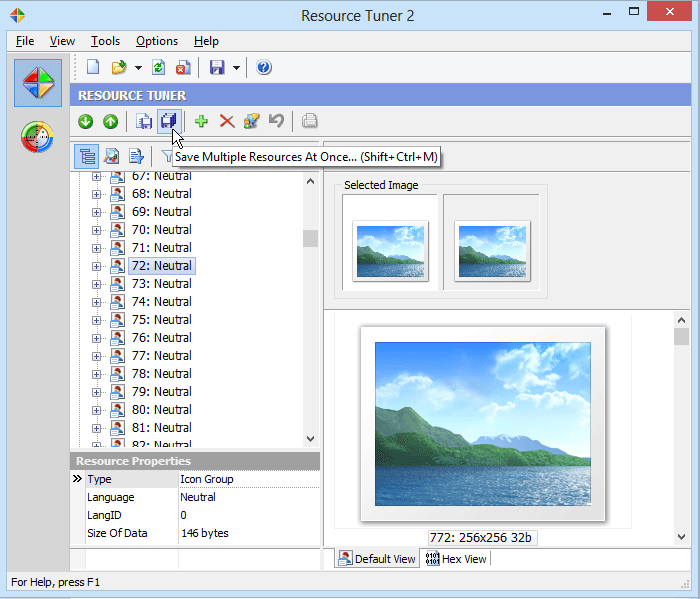
Resource Viewer
The side navigation pane makes sure you have quick access to both the Resource Editor and the File Scanner.
From the toolbar you can quickly save your changes, save or delete/restore a selected resource, copy a selected resource to the clipboard, add an item into the resource section, search through the resource tree (useful for searching RCData content), and see properties of a selected resource (Language ID, Type, Raw size, etc). Several tabs give you the possibility to switch from the default view to HEX, as well as text.
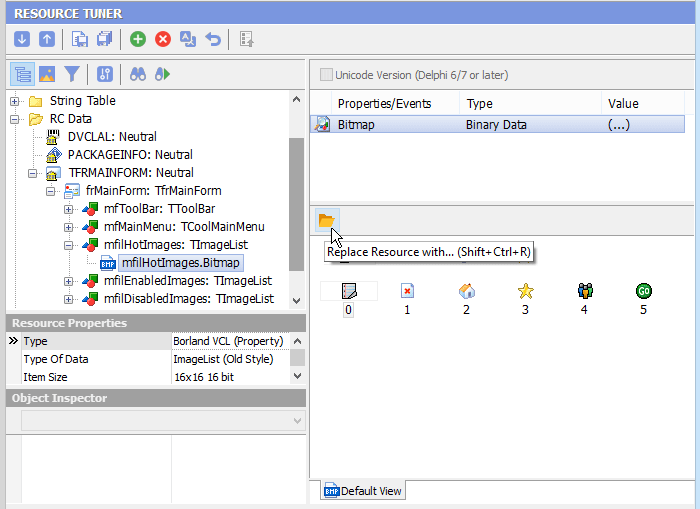
Navigate easily through the Delphi forms, RCData, and objects, and view their contents (Image Lists, Strings List, Glyphs, Bitmaps). There's a very strong emphasis on peeking inside Delphi applications and packages.
Log Pane
The Log pane displays all the events and operations, event timestamps, and information about the headers of the file. When you open a file with Resource Tuner, the UPX Unpacker plug-in detects whether a file is packed with UPX, and if so, this file will be unpacked automatically.

Resource Editor
Resource Tuner automatically starts the appropriate editor mode (Text, Graphics, Dialog, Menu, DFM, Media or Version Info). That will allow you to view and edit resources in the most convenient and intuitive way.
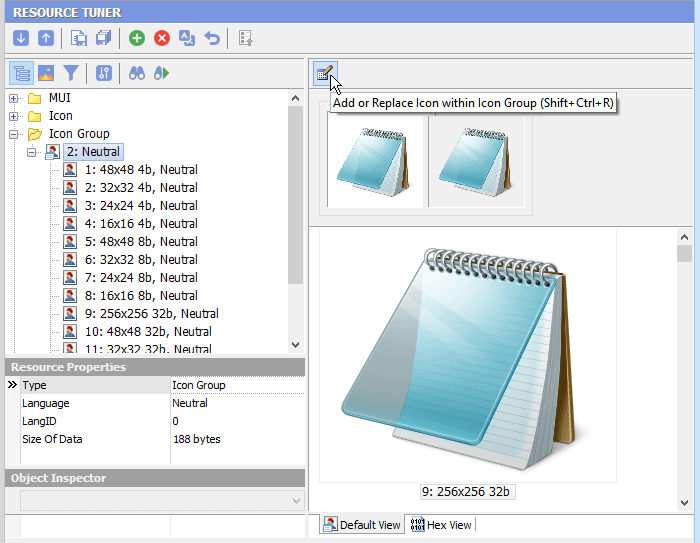
Resource Tuner supports viewing, adding and replacing large (256x256) Vista icons stored as PNGs.
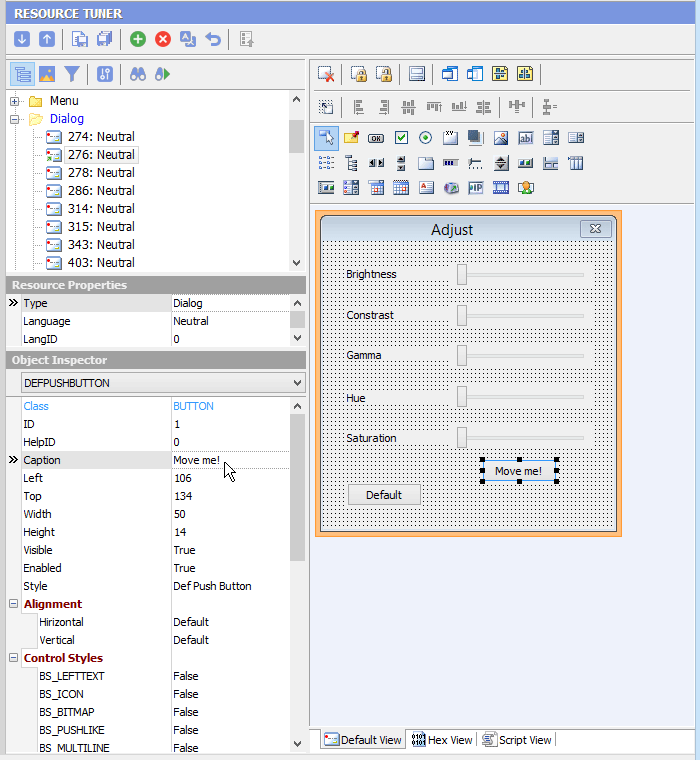
When editing dialogs, you will see a preview of what the dialog box looks like. To see the script behind the dialog box that makes it work, select the Script View tab.
Application Manifest Wizard
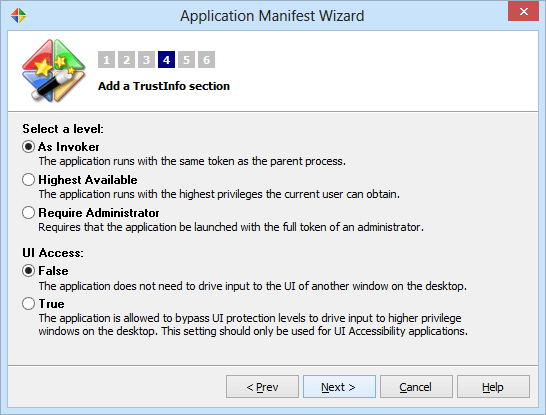
The Manifest Wizard helps you insert an application manifest into the resource section. It also will let you specially configure your Pre-Vista application to work with newer Windows versions, and mark it with a requested execution level.
Resource Extraction
The Resource File Scanner is an easy way to scan the directories and drives on your computer and extract all it finds inside the executable files in any directory of your choice.
To enable scanning, you have to specify the search locations first by pressing either the button  or Ctrl+F. To start scanning, press either the green button
  or F9.
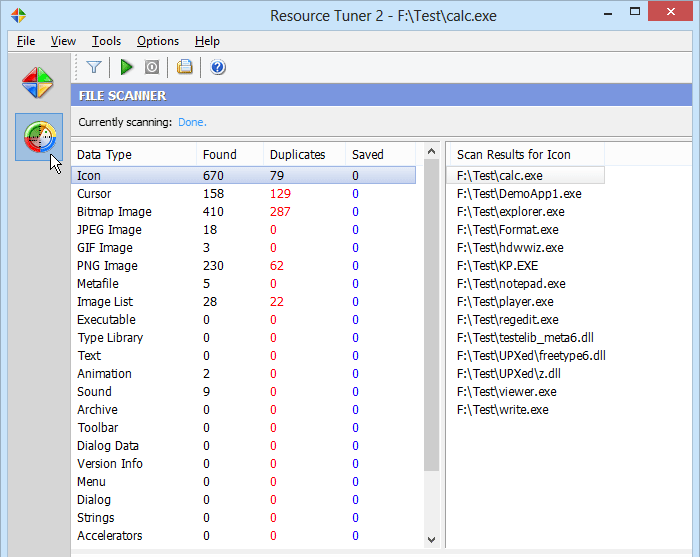
You selectively choose what items stored in the resources will appear in the search result view. A wizard-based process guides you through several filter options and other properties, with the result then shown in categories, and the option to load them in the Resource Editor.
Customization Options
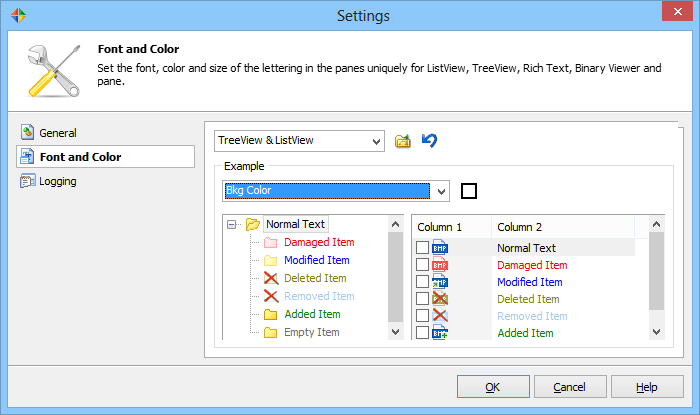
Selecting Settings from the Tools menu will display the Customization dialog. This displays a dialog box having three tabs, where you can customize the general, view, and logging settings. Clicking on any tab will show the page of choices connected to that tab.
We Offer A Free Trial: Try The Software, Risk Free.

Resource Tuner runs on all versions of Windows from 11 and 10 through 8, 7, Vista, XP, and 2000.